Showing posts with label android. Show all posts

Thursday, 21 November 2013

Bypass android pattern lock!

Ok so not long ago i had a problem with a locked android device with a pattern and i managed to unlock it using adb,so here's how in case you were stuck one day with a locked device.

the device needs to have usb debugging enabled in case usb debugging isn't enabled and you have cwm you can run the same instructions from cwm,root is not required (though it will be so better if the device was rooted)

this was tested on:gingerbread,ice cream sandwich and jelly bean.

both method are through adb. 

method 1:
Code:
adb shell
cd /data/data/com.android.providers.settings/databases
sqlite3 settings.db
update system set value=0 where name='lock_pattern_autolock';
update system set value=0 where name='lockscreen.lockedoutpermanently';
.quit
-AND/OR-

method 2:
Code:
adb shell rm /data/system/gesture.key
and that's a video showing how method 2 is done (thanks to melvinchng) : http://www.youtube.com/watch?v=tVJ7T...layer_embedded

you can try both of them,here is how i managed to remove the lock:
1- run the first method.
2-reboot
3-run the second method
4-reboot

NOTES:
-in the first method each line is a seperate command so click enter after typing each line.
-in the second method type all the command and then press enter.
-after running both methods and rebooting you may see the pattern lock,that doesn't necessarily mean it doesn't work,just try any random pattern and it may unlock then remove the pattern from settings.
-this may and may not work,it may work on some devices and don't on others,so all you can do is trying it but i can't assure it will work
Read more ...

Monday, 18 November 2013

Android Secret codes------------------------------------


1. Phone Information, Usage andBattery – *#*#4636#*#*

2. IMEI Number – *#06#

3. Enter Service Menu On NewerPhones – *#0*#

4. Detailed Camera Information –*#*#34971539#*#*

5. Backup All Media Files –*#*#273282*255*663282*#*#*

6. Wireless LAN Test –*#*#232339#*#*

7. Enable Test Mode for Service –*#*#197328640#*#*

8. Back-light Test – *#*#0842#*#*

9. Test the Touchscreen –*#*#2664#*#*

10. Vibration Test – *#*#0842#*#*

11. FTA Software Version –*#*#1111#*#*

12. Complete Software andHardware Info – *#12580*369#

13. Diagnostic Configuration –*#9090#

14. USB Logging Control –*#872564#

15. System Dump Mode – *#9900#

16. HSDPA/HSUPA Control Menu –*#301279#

17. View Phone Lock Status –*#7465625#

18. Reset the Data Partition toFactory State – *#*#7780#*#*

Read more ...

Saturday, 14 September 2013

How to Speed up Android Phone -10 Tips

Android devices are just Awesome.But after buying a new device i.e after a month using it gives you some performance lag whether its a Karboon A5 or aSamsung Galaxy S4 after using it some days it will give you some performance lag.So today we have Top 10 tips to remove these lags, these tips are small but effective.

1.Keep Optimizing your Home Screen

People feels very nice when they see Live Wallpaper and Lots of Widget on their Home Screen and Why the Live Wallpapers are So cool and the Widgets on the home Screen on work more easier. So peoples have a Live Wallpaper and Lots of widget on their Home Screen but many less peoples are aware these things slows down your Phone performance especially when you have older and low configuration Phone.

As the Widgets are important but using too many widgets will surely get down your phone performance and not to forget Live wallpapers will directly kill you Battery Life.

2.Startup Cleaner

Whenever your Android device boots there are many apps which get started at the booting time of the device from many of them are installed by your device hardware company and many are from the telecommunication company also. But these apps are important which provides you the basic function of your device. But when you install the custom apps some of them are also started in the booting time which are not necessary so if we kills them at the booting you can increase a your device performance a lot.


To remove these unwanted apps starting at boot time, you have to install app named as "Startup Cleaner 2.0". From this app you can control everything to kill any app at booting time you Select that app from Start up cleaner and click on "Batch Prevent Default". But don't kill the apps for that you are not sure just Google the function of the app then only kill any app.

3.Have a eye on the Apps running in the background

Android is Multitasking Operating System which allows you to do perform multiple actions at one time but many peoples misuses this feature which takes to a lag in Device performance. Majority of peoples don't know how to close an app correctly when they want to close an app they just press the home screen button and think the app is close but as its a multitasking system it just minimize the app.

So its a must advice that we have an eye on the apps running in the background this take too much CPU and battery usage, so we should close the app correctly when not in use. To close an app correctly i always recommend to use Task Manager, Just run the Task Manager and  got to running App (tab). Here will be all the apps which are running on the background, just the close the app by clicking on the End button in front of the App name. This makes your Device battery and performance running smoothly.

4.Updating Mobile Apps


Android is most popular OS for the mobile device at the current time. So it offers a regular update in its OS, Apps and UI. Now at the Current Time all the Leading Mobile Manufactures are offering there own designed User Interface with there Phones, and to make the User experience better they offer a regular update. But many peoples think updating is just a waste of time Don't avoid updates they are here to help you. Like any Game developer is providing update for the better Graphics and any App developer is providing update for the new and latest features which can help you a lot. So its better to have a regular update whenever possible.

5.Avoid Synchronization


All most everyone uses Synchronization but peoples don't know this the root for making you battery Life low and Performance Lag. Synchronization is a best feature for the Business man and peoples who are very busy in their day to day life. Everyone is recommended to check their E-mail and social status manually rather synchronization. All e-mail applications and social media apps likeFacebook, twitter, Instagram and many other apps comes with Auto-Synchronization feature which make your phone performance down. So we recommend you disable the synchronization and check for all things manually.

6.Avoiding Launchers apps

There are many personalization apps available on Play store which make your device Looks Just awesome but only at visible side. At the other side it suck all your RAM and Battery Life, which makes your device working slowly.


This is a good app in terms of personalization but needs a lot of improvement to make it more performance friendly with the Device. I recommend you to uninstall the app and will feel you make a great experience.

7.Installing Custom Browser


Many peoples uses the default browser of the android. But in the Play Store there lot's of other Browser available which provides a better internet surfing experience and have a low need of RAM. Using the Custom browser will take low use of RAM and performance of CPU and will also provide more speed while surfing. Recommended Browsers are Opera, Uc browser, Chrome, etc.

8.Cleaning Cache Memory

All Browsers, Apps and Games uses their cache memory. If we keep cleaning this Cache memory regularly then it will increase your performance speed a lot. To delete this Cache memory Download "1Tap Cleaner" app from Play Store.

9.Turn off Animation

This features comes pre-loaded in all android device. These animation is on no use and also look silly and the most important many times it causes delays while surfing the phone especially in older phones so its better to close it. To disable this animation Settings> Display> Animation Just turn it off.

10.Restarting

Every human needs a sleep, phone is also a machine it also need some rest but we are not telling to switch it off.Just try to restart your once a week will improve your device loader faster.

I hope guys you enjoyed it and will follow these tips.If you face any problem Just feel free to ask in Comments.
Read more ...

Monday, 9 September 2013

Atrium for Facebook[APP]

Hi, Friends

I would like to introduce new Facebook client: Atrium for Facebook. Its clean, cutting edge UI design combined with blazing fast performance make Atrium one of the best Facebook apps currently available for Android. 

The list of supported languages already includes English, German, French, Dutch, Italian, Greek, Portuguese, Spanish, Korean, Polish, Russian and Ukrainian. I am looking forward to translating Atrium for Facebook to other languages. Feel free to drop me a line if you are ready to help.

Download on Google Play

Please support app development by providing positive rating/feedback on google play. This is the best motivation for developer to continue working on the project and bring new features to the app.

What's New in 1.7.1 (September 4, 2013):

- Improved UI for tablets;
- Search for new friends and pages;
- Bug-fixes.

FEATURES:

• Instantly see who's online on Facebook;
• Explore your friends’ profiles, including photos, videos and timeline;
• Share status updates, photos and videos;
• Get notified when friends like and comment on your posts;
• View hi-res photos directly in the news feed;
• One-click access to comments and likes in the news feed;
• Send instant messages to your friends (even when they are offline);
• Express your emotions with cool smileys and rage faces;
• Quickly access your complete Facebook chat history;
• One-click access to your most recent conversations;
• Check-in at interesting places all around the world;
• No additional fees, 100% free!

I am looking forward to your feedback on the app usability, performance, features, etc. New feature requests are also welcome.


Read more ...

Tasker | The Deep-Sleep-Detective | V13 | Root ||

Profile Aim

Tasker will use a number of triggers to detect, log, monitor and report when your device has been in a deep-sleep state, and more importantly; when it hasn’t. The profiles identify both potential and actual deep-sleep-behaviour, providing statistics and real-time alerts should your device fail to enter deep-sleep in the absence of any common preventing factors. The alerts will enable you to identify the troublesome processes and applications that love to kill your battery. 

Pushing Tasker to its Limits?

Composing this after just uploading V13, I can confidently say that I'm pretty sure I've now pushed Tasker to its limits when it comes to using its functionality and to build as close as I believe you can get to a fully fledged application:

* Installation tasks to inject binary and set permissions
* Tasks dynamically compose and execute shell scripts
* Automated and ad hoc error logging
* 'Self-checking' error loops
* Tasker/shell generated reporting
* Media and interactive notifications
* 28 intertwining tasks totalling 500+ actions triggered by 11 contexts

Theory

Finding out when your device has entered deep-sleep, is rather like asking someone to drop you a quick text as soon as they’ve died. As impossible as that sounds, you can of course always get them to let you know they aren’t dead; establish they are doing something else so currently can’t be dead; or discover they are indeed still alive and therefore conclude they weren’t dead in the first place…

I’ll stop talking in riddles and start where I started, which is when your device has the potential to enter deep-sleep:

* When the display is off

Yes, I know that was a pretty obvious one to start with, but if we just record potential deep-sleep-time as ‘screen off time’ we will be left with major inaccuracies such as:

* Media Playing
* During Call

And more importantly:

* Device charging

Those example factors already start to narrow down the times of when your device enters the zone of deep-sleep-potential (DSP).

Practice

We can retrospectively establish the amount of time the device has spent in deep-sleep, by looking at the file:
Code:
sys/devices/system/cpu/cpu0/cpufreq/stats/time_in_state
Next to each available scaling frequency is the amount of time in milliseconds the device has spent at that frequency since last boot. This is my example file:
Code:
245760   319834
384000   4651
576000   3736
768000   2271
998400   6983
1113600  24953
The up-time of the device, less the sum of the individual frequency times, provides us with the amount of time that the CPU was not active = Total-Deep-Sleep-Time. We can compare this proportionally to the up-time and simply report deep-sleep as a percentage of the current usage (since last boot). 

That is all well and good, but if the percentage is very low, it immediately suggests poor device performance and that may not be a true reflection. To make this figure more accurate (and perhaps less alarming) we first need to establish the DSP your device had and base our statistics on that.

Overview

Dealing with the obvious first, we know that DSP occurs only when the screen is off and ends when it turns back on. At the point the display goes off, we can take a log of the current up-time and compare it to the total time in frequency state. Subtracting one from the other gives us a constant we can refer to.

If the device does not enter deep-sleep prior to the screen turning back on, then performing the same calculations at the display on trigger should provide the same constant. 

Any difference between the display off/on constants will notify us not only that the device has been in deep-sleep, but also for how long. This information can be immediately relayed and/or totalled up to be used against DSP times to build a more accurate, real-time and ongoing reflection of your device’s deep-sleep-behaviour (DSB).

Already starting to narrow down DSP times, and we can further exclude the events that were listed above (such as charging) from our DSP calculations.

Profiles and Tasks

I think I may have permanently damaged my brain making these profiles work, report and intertwine correctly… I have many further plans which I’ll list below – albeit theoretically….

Unlike my other Tasker posts, I’m not going to make this a tutorial (*group sigh?*), as in brief terms (which does not reflect the extent of my hair-loss), it keeps checking the time-in-state files against constants whilst making sure no DSP excluding factors or events are active. It performs a sh*t load of comparable percentages, converting a lot of milliseconds to hours and minutes to make it user-friendly for you. Yes, that was my hint to you to hit the thanks meter.

Honestly, the thought of writing this one out in detail makes me feel bored, so I doubt it would make very exciting reading… The logic in the profiles is there to follow of course and I’ll be happy to answer any of your questions, but for once this really is just a ‘plug and go’ – there’s nothing for you to edit, other than perhaps choosing to align triggers with your existing set-up.

Future Development

It's my understanding that power management and wakelock debugging can only be implemented when Android is compiled and therefore we have no specific "I'm about to fall asleep, quick take a log" trigger to work with (I'd love you to tell me otherwise) for analysis, so as the profiles develop, more deep-sleep preventative 'events', such as receiving an SMS will be included in order to build a greater picture of what is happening before and after deep-sleep.

The ultimate goal would be to gather comparison logs to flag up the likely suspects for the device not entering deep-sleep in the first place or waking up from it too often. You can almost see the UI notification now:

That may be a few versions away, but we've all got to have a dream... and preferably one that involves every noob with battery issues downloading my application for a dollar from the market .

Read more ...

Tuesday, 3 September 2013

Android OS Vs iPhone OS Which One is the Best for Personal Use

If you are choosing between the Android operating system and the iPhone OS (iOS), then you should first decide which features and functions are most important to you. The information below should help you decide, although if you do not know what is important to you then you might have a problem.
The first thing you should be aware of is that Apple keeps a strong hold on its operating system, while Android started life as part of an open alliance of 84 electronics firms, backed by Google, with the objective of developing a consistent operating system between them. Android is adaptable, and even though it was purchased by Google, other developers can use it. For example, Samsung uses it it the firm's Galaxy smartphone, and LG also uses the Android OS.
iPhone is specific to Apple, which puts the iOS in direct competition with all other smartphone manufacturers. This is one reason for Android to be outstripping Apple devices in sales. One of the problems with the iPhone OS is its limited compatibility with non-Apple portable devices.
Here are some differences between the two:

The Interface

If you prefer a simple interface, then the iPhone OS offers a simple and clean menu system that those new to smartphones will appreciate. It is significantly easier to navigate than an Android OS device. However, if you like digging deeply into menus to find the app or feature you are seeking, then the Android OS will make you drool! Often simplicity is not best, however, and too simple a menu system can leave many options behind – such as a QWERTY keypad.
The Android interface is ideal for QWERTY typing, rather than the type of keypad that drives many people mad when they try to be quick with their messages, making errors when hitting a glass or plastic screen. Android facilitates the use of a genuine keypad with real keys where your finger don't slip on the plastic. You can puchase a number of smartphones offering real physical keypads that slide from under the touchscreen, and of a type that the iPhone OS cannot support.

Multitasking

Android wins with multitasking. Apple's OS4 has improved multitasking from previous versions, but Apple restricts the iPhone to its Apps store, and the capability of the iPhone to multitask is dependent on the Apps store classification. This can significantly compromise multitasking speed and efficiency, and Android wins every time here. It's the old Apple fixation with its own stores that restricts the OS from being used to its full capability.
Android, on the other hand, has no such restrictions, and while this is not ideal, it is still preferable to the restrictions imposed by Apple. The Samsung Galaxy 10.1, for example, uses the Android 4.0 (Ice Cream Sandwich) OS which offers true seamless multitasking between multiple screens.

Use of Folders

The use of folders is new in the iPod Touch, but Android has offered them from the start, thus giving them a head start in this method of organizing your files on portable devices. Many people have no need for folders in their smartphone, but if this is an important feature for you, then Android wins hands down.

Applications (Apps)

Without a doubt, the Android OS beats the iPhone iOS hands down! This is not because of any technical difference between the operating systems, but simply because Android is open source. Even though it is owned by Google, the software is open for developers to use to generate apps. You will find an app for just about anything that is compatible with the Android OS, while iPhone OS apps must be approved by Apple.
Yes, there are many iPhone apps available on the market – from the Apple Store at Apple prices, though to be fair some are free. With the Android OS, however, you can go online and download unlimited apps suitable for the operating system. If you want an app to carry out a specific task, you have a significantly higher chance of finding it for Android than for any Apple device!

Which is Best: The Android OS or the iPhone OS?

Which is best between the two depends on your own personal preference. Apple fans will prefer the iPhone OS because it integrates perfectly with other Apple products such as the Apple Mac computers and laptops, the iPod and the iPad. Not only that but the unified email inbox is neat, and offers something that Android cell phones do not have – unless you find an app out there that offers this feature.
That's something you cannot get with the iPhone operating system, because it is patented and not open source as Android is. Anything else that is email related, however, is also available on Android devices. Each offers great game options, although the open source nature of the Android OS will likely push it into the lead in this respect.
With regard to games, Android lags well behind iPhone- in fact it is next to impossible to find good games for the Android OS. Flash is another problem, though in this case with the iPhone OS. Apple has always been critical of Flash, and if you use Flash or want to access sites or apps that use it, then Apple will not allow you – Android will!
In conclusion, there is very little between the two, although the open source nature of Android offers the opportunity for a more diverse range of apps, if not more in actual number. With the iPhone OS you are restricted to apps and other software that Apple approves, while Android is open to anyone that wants to use the operating system to design an application.
Android OS Vs iPhone OS: fundamentally, the choice is yours and the differences are not sufficient to place one much higher than the other. Apple fans will use nothing else, even if restricted to the current version of the iPhone, while Android users will like the availability of cell phones such as the Motorola Droid and the Samsung Galaxy S3 and Galaxy Nexus.

Read more ...

Thursday, 29 August 2013

How to Use Whatsapp on pc

How to use Whatsapp on Computer?

whats+app+pc
  • Are you the one who don't have a Smart phone? and still want to use whatsapp?
  • Want to run android apps and play android games on pc?
We have Solution for all your Questions:-
whatsapppc

Then you are at the right place now you can use whats app on your PC for free.whats app helps you to connect with friends family.

whatsapp


Install Whatsapp on your PC:

  • Go here and Download bluestacks
  • Now run the downloaded application.(click here for how to install bluestacks)
  • Now you have installed Bluestacks Successully.You can skip the below step.
  • If you are Getting Some Error while installing
  • Get .NET Framework only if you are getting Error 
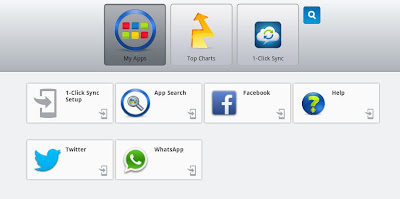
  • Now open the application you can find the screen capture just like below picture
search+fro+whatsapp
  • Now Click on Search icon and search for Whatsapp
whatsapp+for+pc
  • Now choose the whatsapp messenger form any market .its your wish.
choose+whatsapp+from+any+market
  • Just click and Download whatsapp after selecting from any app store
download+whatsapp

  • You can find downloaded app in My Apps.
whatsapp+in+my+apps
  • Now click on Whatsapp fill the details and start using it.
  • If you want to uninstall any app just hold the app and click cross button.
  • To add Contacts just follow below screen capture
ad+contact+in+whatsapp
  • Step 2: Add Contacts


ad+contacts+in+whatsapp+on+pc

.NET framework links( use if you are getting error like above)


Read more ...

Saturday, 24 August 2013

Secret Codes For Your Android Mobile


Hai friends, here is a wide collection of secret codes for your mobile with Android OS. These codes enables you to access the hidden options which are not shown by default on your device, and can be used for testing the functions of various utilities used by your mobile.

Note: We Cannot guaranty that these codes will work on all Android mobiles!


    These codes are used only by technicians, So be careful with them and use it at your own risk. Press "Ctrl+D" for Future Use! :)

    General Codes:


    *#06# – To Display's IMEI number.

    *2767*3855# – To format your device i.e To delete everything on the phone memory (Can be customized).

    *#*#4636#*#* – This code will display your usage statistics and battery.

    *#*#273282*255*663282*#*#* – This code helps you to back up all media files on your mobile.

    *#*#197328640#*#* – This code will send you to the test mode, to test various functionality of your mobile.

    *#*#1111#*#* – This code will display FTA software version.

    *#*#1234#*#* – This code will show PDA and firmware version.

    *#*#232339#*#* – For wireless LAN tests.

    *#*#0842#*#* – This code is used  for Backlight/vibration test.

    *#12580*369# – Display's Software and hardware info.

    *#*#2664#*#* – This code is used for Testing the touchscreen.

    *#9900# – System dump mode.

    *#9090# – Diagnostic configuration.

    *#*#34971539#*#* – Will display Detailed camera information.

    *#872564# – USB logging control.

    *#301279# – HSDPA/HSUPA Control Menu.

    *#7465625# – This code will display phone's lock status.

    *#0*# – This code will enable you to enter the service menu on newer phones like Galaxy S III.

    *#*#7780#*#* – Reset the /data partition to factory state.


    Basic Codes:

    *#*#7780#*#*   - This code is used for factory restore setting.This will remove Google account setting and System and application data and settings.

    *2767*3855#   -  This code is used for factory format, and will remove all files and settings including the internal memory storage. It will also re install the firmware.

    *#*#4636#*#*   - This code show information about your phone and battery.

    *#*#273283*255*663282*#*#*    - This code opens a File copy screen where you can backup your media files e.g. Images, Sound, Video and Voice memo.

    *#*#197328640#*#*    -  This code can be used to enter into Service mode. You can run various tests and change settings in the service mode.

    *#*#7594#*#*   -  This code enable your "End call / Power" button into direct power off button without asking for selecting any option(silent mode, aero plane and power-off).

    *#*#8255#*#*  -  This code can be used to launch G Talk Service Monitor.

    *#*#34971539#*#*    -  This code is used to get camera information. Please avoid update camera firmware option.

    W-LAN, GPS and Bluetooth Test Codes:

    *#*#232339#*#* OR *#*#526#*#* OR *#*#528#*#*   -  W-LAN test (Use “Menu” button to start various tests).

    *#*#232338#*#*    -  Shows WiFi MAC address.

    *#*#1472365#*#*    -  GPS test.

    *#*#1575#*#*    -  Another GPS test.

    *#*#232331#*#*   -  Bluetooth test.

    *#*#232337#*#    -  Shows Bluetooth device address.

    Codes to launch various Factory Tests:

    *#*#0842#*#*   - Device test (Vibration test and BackLight test).

    *#*#0588#*#*    - Proximity sensor test.

    *#*#0*#*#*    -  LCD test.

    *#*#2664#*#*   -  Touch screen test.

    *#*#2663#*#*    -  Touch screen version.

    *#*#0283#*#*   -  Packet Loopback.

    *#*#0673#*#* OR *#*#0289#*#*    -  Melody test.

    *#*#3264#*#*    -  RAM version.

    Code for firmware version information:

     *#*#1111#*#*   -  FTA SW Version.

    *#*#2222#*#*   - FTA HW Version.

    *#*#44336#*#* - PDA, Phone, CSC, Build Time, Changelist number.

    *#*#4986*2650468#*#*   - PDA, Phone, H/W, RFCallDate.

    *#*#1234#*#*  - PDA and Phone.
    Read more ...

    Powered By Blogger |   Design By Creative Crew
    DMCA.com